Entries: set up the round
Use the controls available for this tool to edit choices, set a range or choose game rules. Review prompts and repeat settings before spinning. The Sound effects switch is below these controls.

Custom Probability Picker
Assign chance values, see them normalized into clear percentages, and spin a wheel whose slice sizes match the displayed odds.
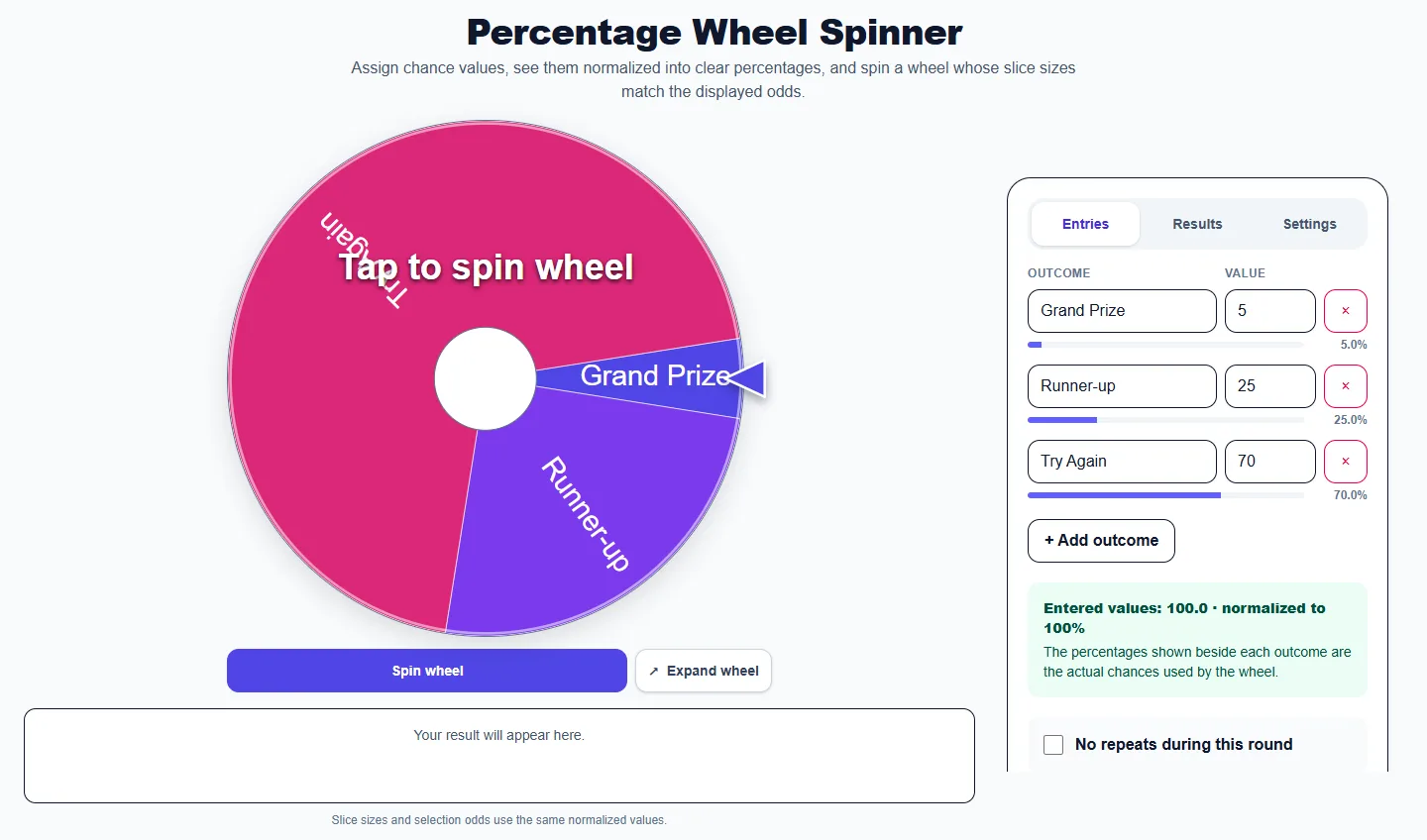
Entered values: 100.0 · normalized to 100%
The percentages shown beside each outcome are the actual chances used by the wheel.
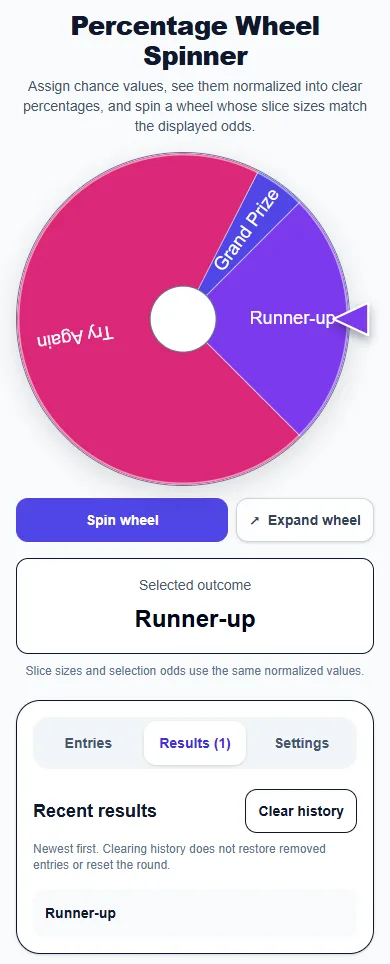
Newest first. Clearing history does not restore removed entries or reset the round.
Your results will appear here after you spin.
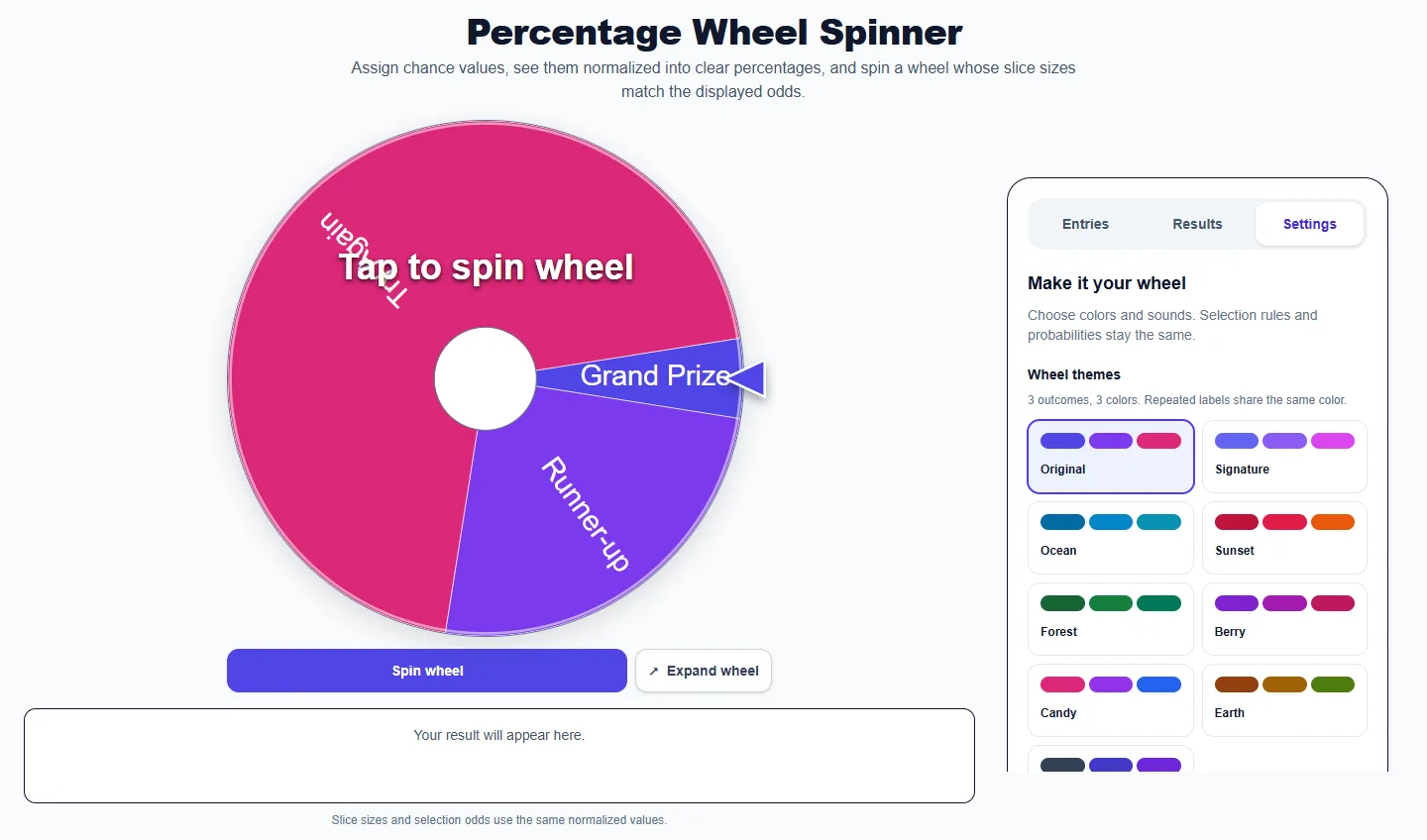
Choose colors and sounds. Selection rules and probabilities stay the same.
3 outcomes, 3 colors. Repeated labels share the same color.
Your result will appear here.
Slice sizes and selection odds use the same normalized values.
Use the controls available for this tool to edit choices, set a range or choose game rules. Review prompts and repeat settings before spinning. The Sound effects switch is below these controls.
Read previous selections, newest first, and use Clear history when you want an empty list. This leaves the active choices and no-repeat pool intact.
Choose a wheel theme, select a winning sound and preview it. The Sound effects switch here stays synchronized with Entries. Colors and sounds do not change selection odds.
Open Results to see the newest selections first. Clear history removes that list; it does not restore removed winners or reset a no-repeat round. Use the tool’s reset control when you want to start a new round.
Open Settings to choose a theme and winning sound. Sound effects is also available in Entries; both switches control the same setting. Turning sound off mutes wheel clicks and the winning sound. Choosing No winning sound only mutes the celebration. Your sound preference is remembered for this English tool in this browser when browser storage is available.
No. Themes only change appearance. Two-outcome wheels use two colors and three-outcome wheels use three. Repeated labels share a color in the selected theme. Entries, repeated slices and any weights still determine the odds.
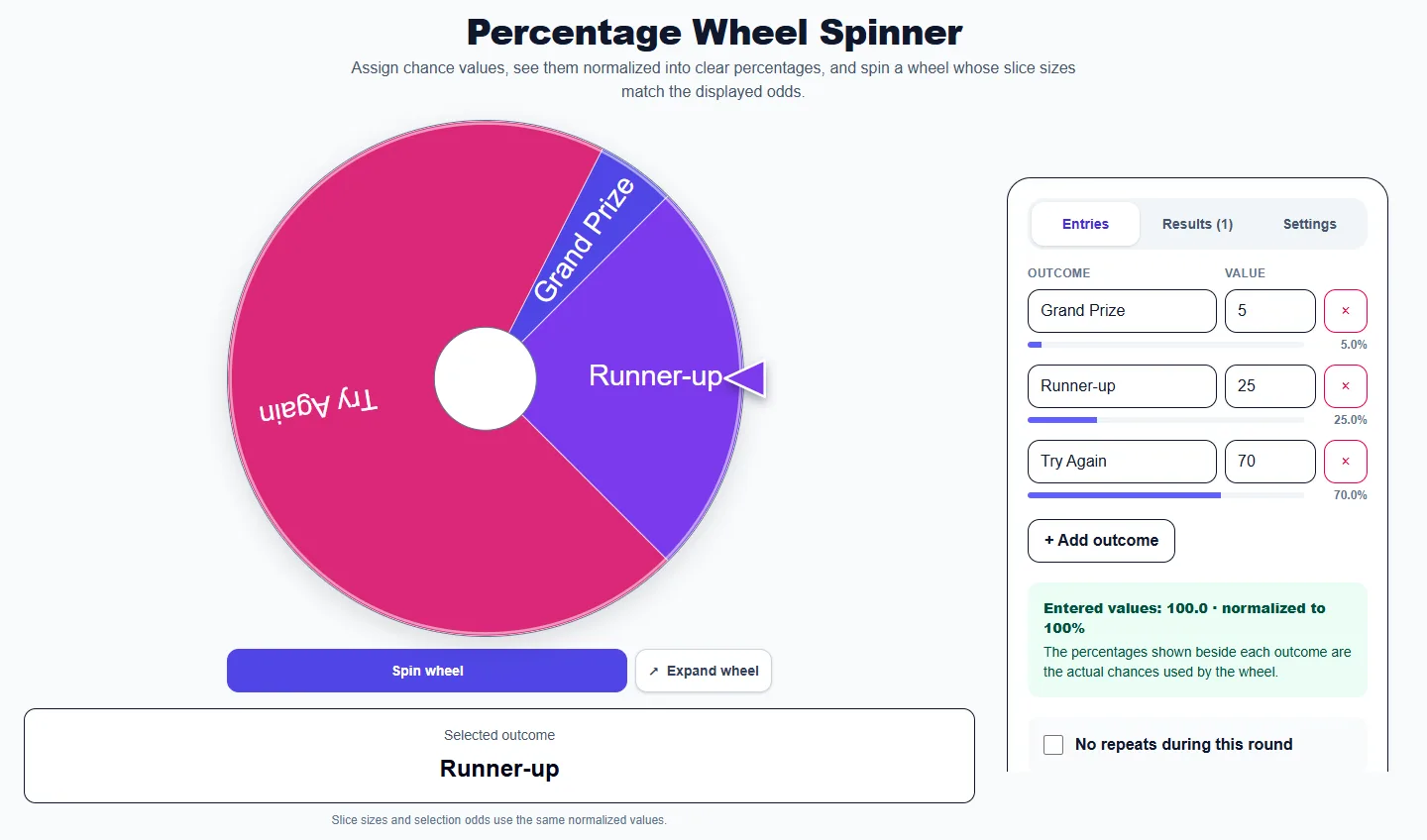
These captures show the current English controls on desktop and phone. Follow the steps below each image; your random results will vary. Select an image to view it at full size.
About this tool
A percentage wheel makes the probability of every outcome visible. Enter positive chance values and the tool automatically normalizes them to 100%, then sizes every wheel segment to match the calculated odds.
The default 5, 25, and 70 values already total 100%. If your edited values total something else, the displayed percentages show the exact normalized chances used for the next spin, so the tool never hides or guesses at the calculation.
Create at least two rows and enter a distinct label for each outcome.
Enter positive values and review the live percentage displayed beside every outcome.
Spin the proportional wheel, then review the winner and recent-result history.
These examples show how the tool can turn a common question or list into a clear random result.
Set Grand Prize to 5, Runner-up to 25, and Try Again to 70 so the visible slices match those exact chances.
Enter the drop chance for each mutually exclusive reward and confirm the normalized total before spinning.
Compare configured percentages with results from repeated spins and explain normal short-run variation.
Compare theoretical percentages with observed results.
Test drop rates, encounter odds, or reward distributions.
Represent several mutually exclusive outcomes with exact chances.
No. The tool normalizes every positive value and clearly displays the exact percentage used for each outcome.
Enter a positive value for any active outcome. Remove an outcome when you do not want it to appear on the wheel.
Random samples naturally vary. Configured percentages describe long-run probability, not a guaranteed result count in a short session.
The selected outcome appears below the wheel as soon as the spin finishes. Results holds earlier picks. Clear history removes those records without restoring used outcomes in a no-repeat round; use Reset round to restore the pool.
More from Spinning My Wheel
Jump to another main picker when you need names, decisions, party prompts, or random numbers.
Add names or choices, spin the wheel, and pick one at random.
Open tool →Get a random yes, no, maybe, or decision-style answer.
Open tool →Spin for Truth or Dare with built-in categories and prompts.
Open tool →Choose a number range or open one of our focused random generators.
Open tool →