Entries: set up the round
Use the controls available for this tool to edit choices, set a range or choose game rules. Review prompts and repeat settings before spinning. The Sound effects switch is below these controls.

Gaming collection
Pick a game idea, Minecraft build or Roblox challenge. Choose an editable template below or create your own gaming list.
Browse templates ↓6 choices are ready to spin.
Track whose turn it is and the rounds each player completes. These are turn counts, not scores.
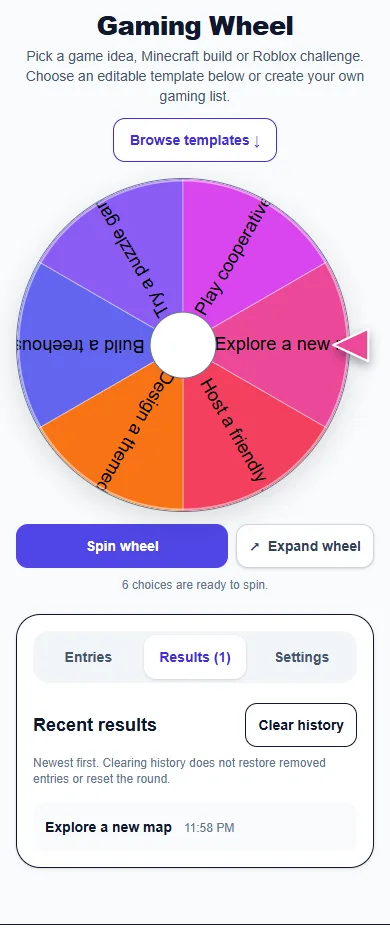
Newest first. Clearing history does not restore removed entries or reset the round.
Your results will appear here after you spin.
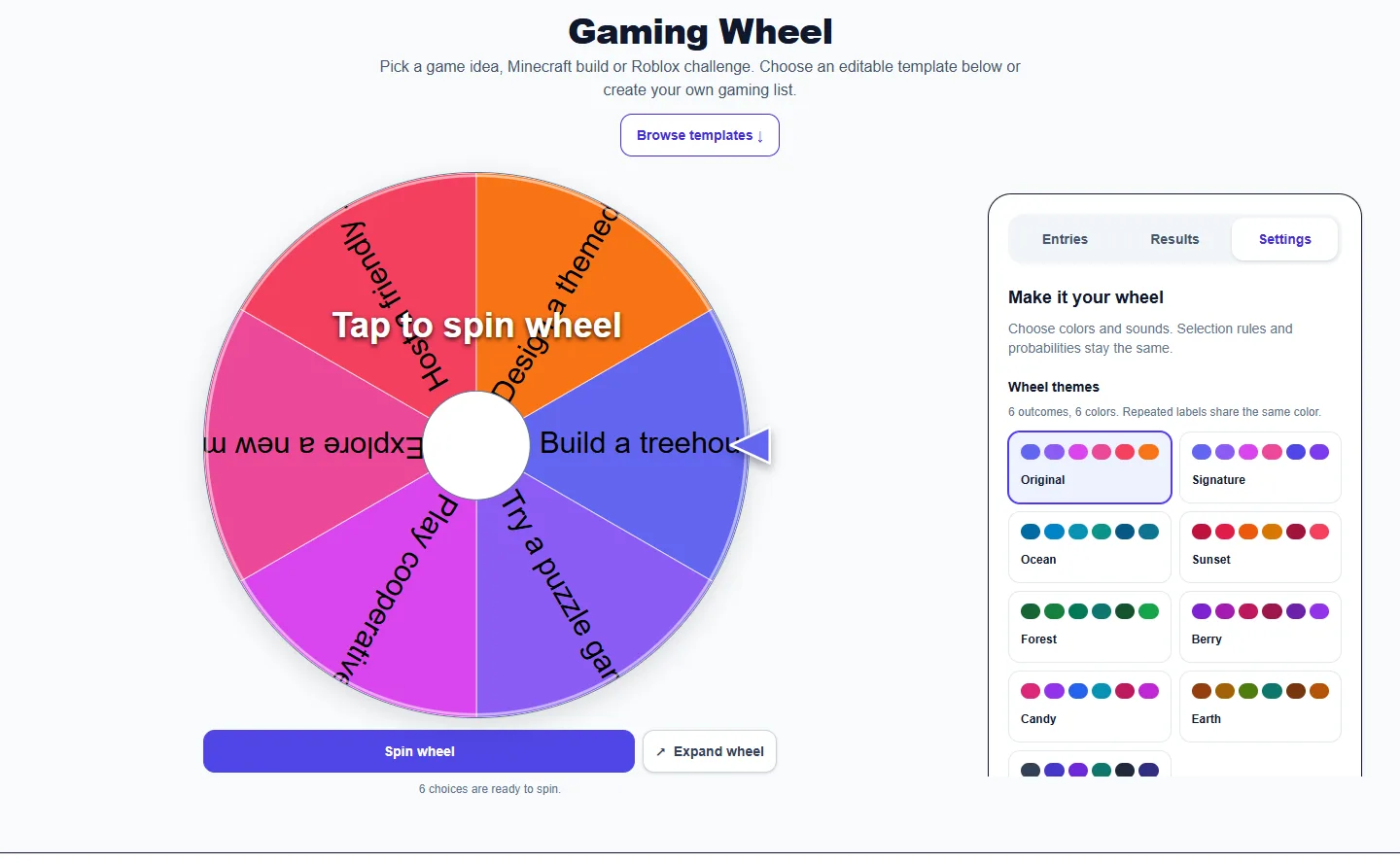
Choose colors and sounds. Selection rules and probabilities stay the same.
6 outcomes, 6 colors. Repeated labels share the same color.
These captures show the current English controls on desktop and phone. Follow the steps below each image; your random results will vary. Select an image to view it at full size.
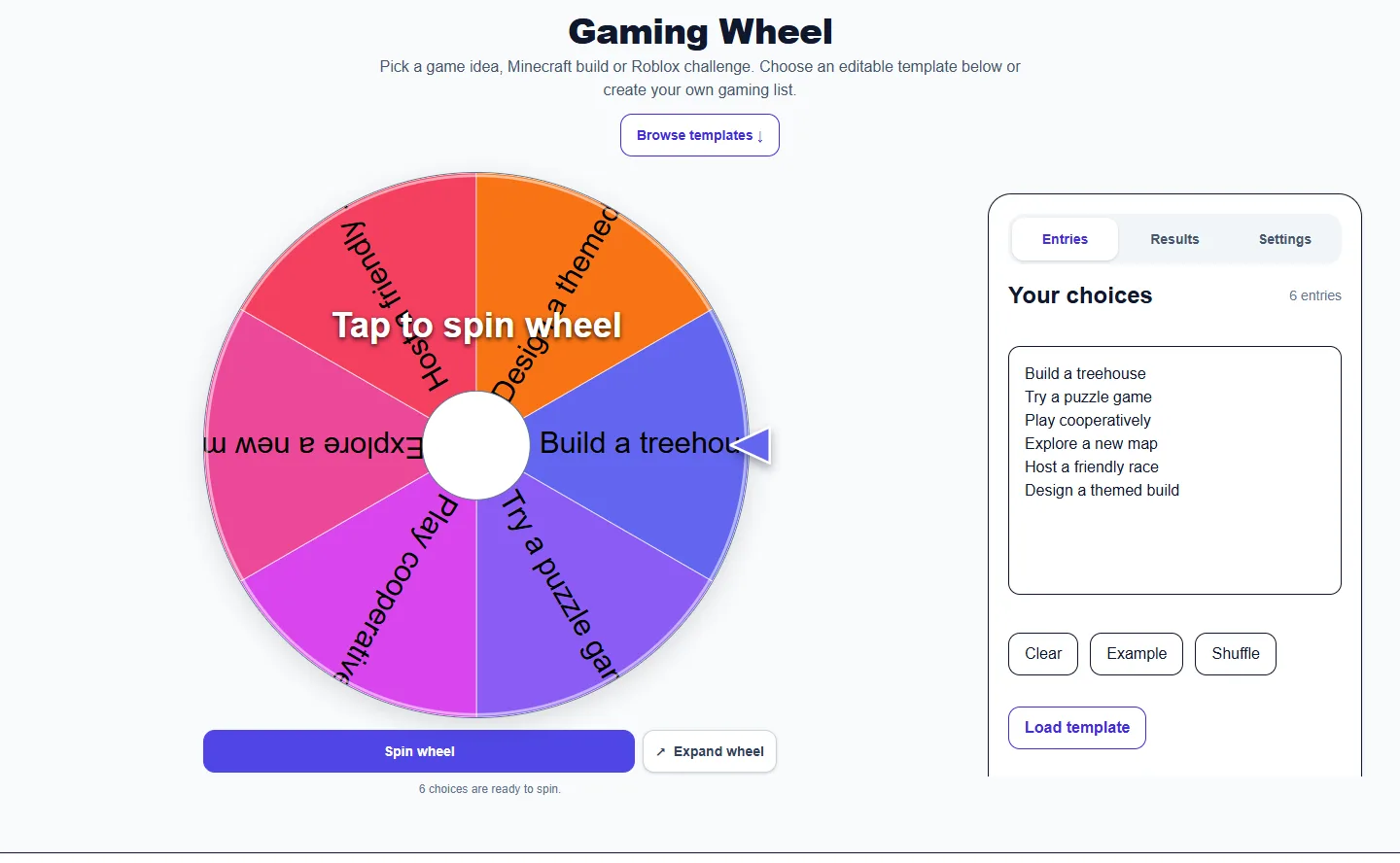
Use the controls available for this tool to edit choices, set a range or choose game rules. Review prompts and repeat settings before spinning. The Sound effects switch is below these controls.
Read previous selections, newest first, and use Clear history when you want an empty list. This leaves the active choices and no-repeat pool intact.
Choose a wheel theme, select a winning sound and preview it. The Sound effects switch here stays synchronized with Entries. Colors and sounds do not change selection odds.
Open Results to see the newest selections first. Clear history removes that list; it does not restore removed winners or reset a no-repeat round. Use the tool’s reset control when you want to start a new round.
Open Settings to choose a theme and winning sound. Sound effects is also available in Entries; both switches control the same setting. Turning sound off mutes wheel clicks and the winning sound. Choosing No winning sound only mutes the celebration. Your sound preference is remembered for this English tool in this browser when browser storage is available.
No. Themes only change appearance. Two-outcome wheels use two colors and three-outcome wheels use three. Repeated labels share a color in the selected theme. Entries, repeated slices and any weights still determine the odds.
In Entries, enable Track turns and completed rounds below Sound effects, then add up to 30 unique nicknames. A message explains any duplicate nicknames or names beyond the limit that are left out. Completed records a round and advances; Pass records a skip and advances. Pick random player changes the turn without recording a round. Reset rounds clears the counts. Spins do not advance the tracker automatically, and tracker data clears on refresh.
Choose a template that fits the game and the people playing. Edit challenges to match your skill level and available time. These are fan-made ideas, not official game modes or products.
Yes. Add, remove or replace choices in the editor before spinning. Each line is an entry with an equal chance.
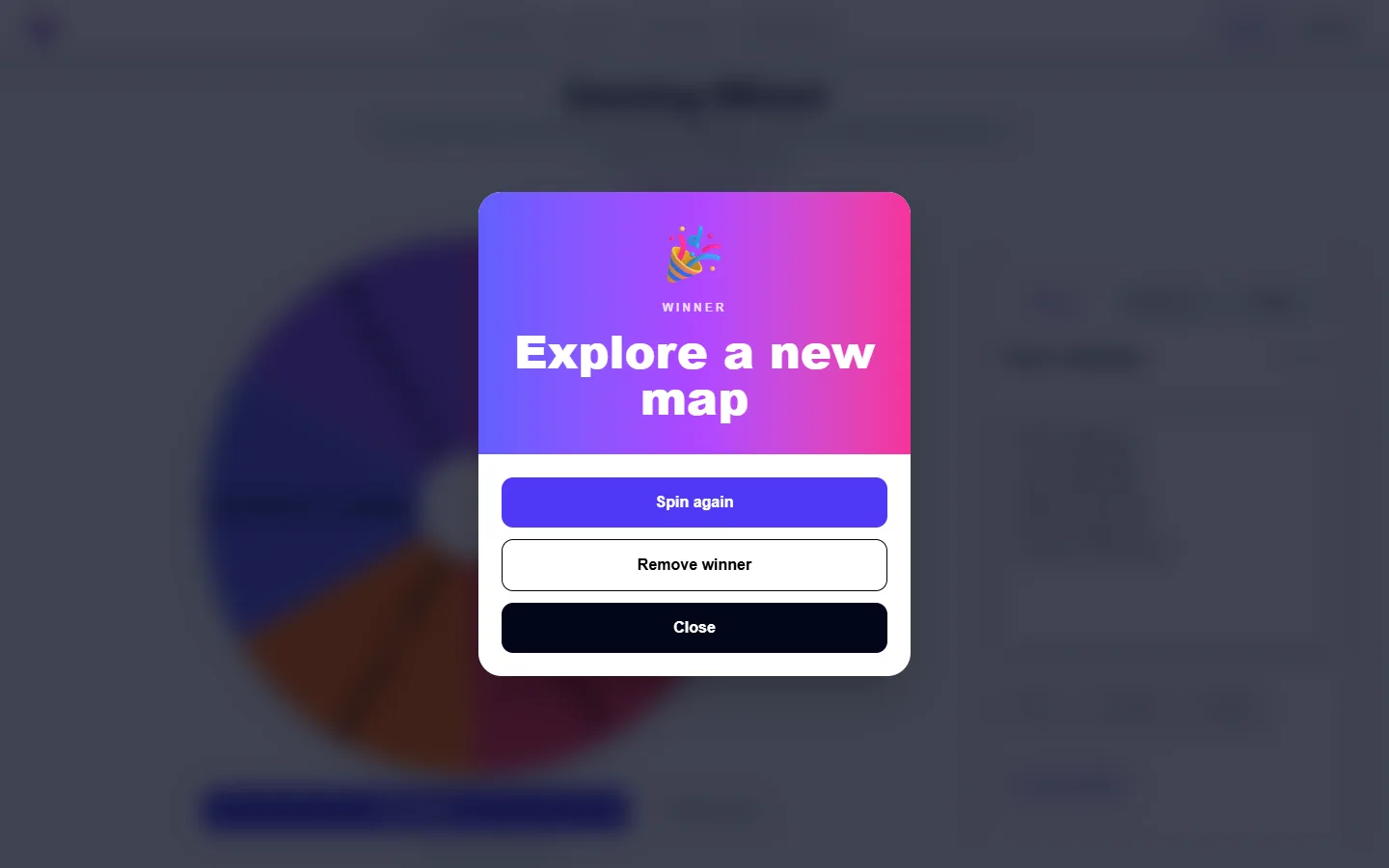
Enable Remove winner after each spin. The selected line is removed when you close the result or spin again. Duplicate lines remain until removed separately.
These category wheels use the current page session. Refreshing or opening another template restores its starting list. Record results separately before leaving.
Yes. Bookmark /gaming-wheel to return to its original choices. Each template has its own address, heading and preloaded list.
More from Spinning My Wheel
Jump to another main picker when you need names, decisions, party prompts, or random numbers.
Add names or choices, spin the wheel, and pick one at random.
Open tool →Get a random yes, no, maybe, or decision-style answer.
Open tool →Spin for Truth or Dare with built-in categories and prompts.
Open tool →Choose a number range or open one of our focused random generators.
Open tool →